Description
This shader is the Master Environment Shader for a stylized game titled Burglar Battle, a 4-player split screen dungeon escape game.
The shader was inspired by shaders from Telltale Games where outlines are black in light but white in shadows (inverted).
For the outlines, a workflow was authored in Adobe Photoshop using Adjustments and Filters to create outlines from Ambient Occlusion textures.
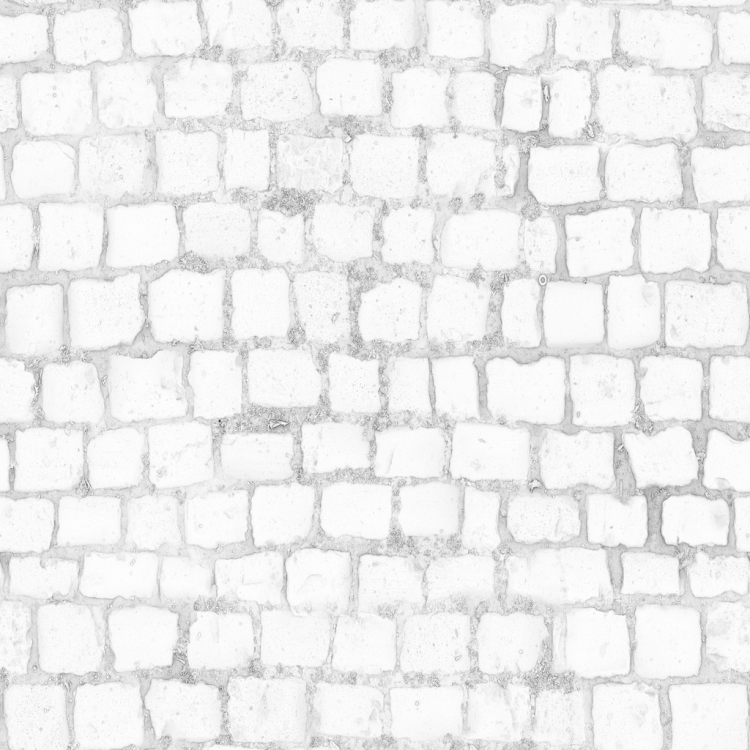
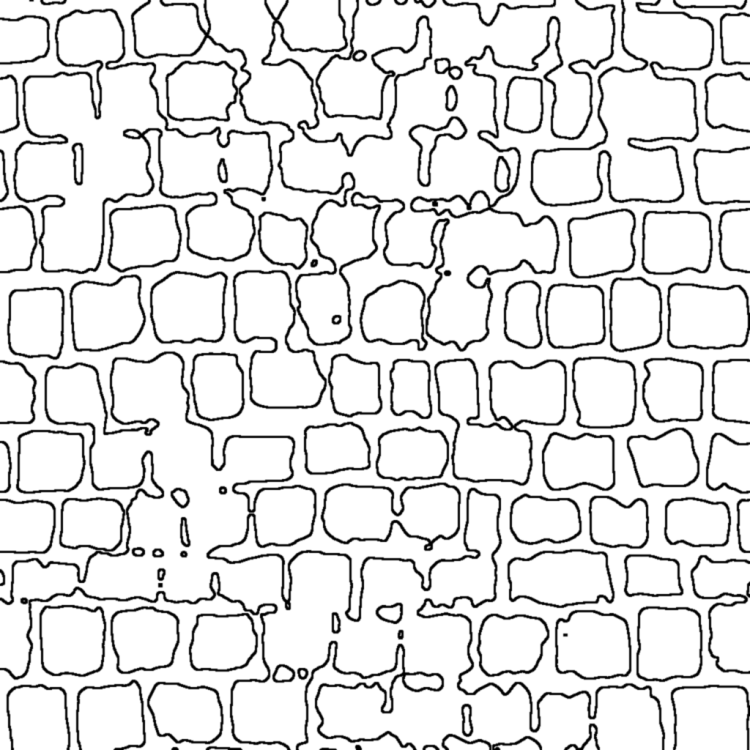
A video directed guide for this shader can be viewed here.
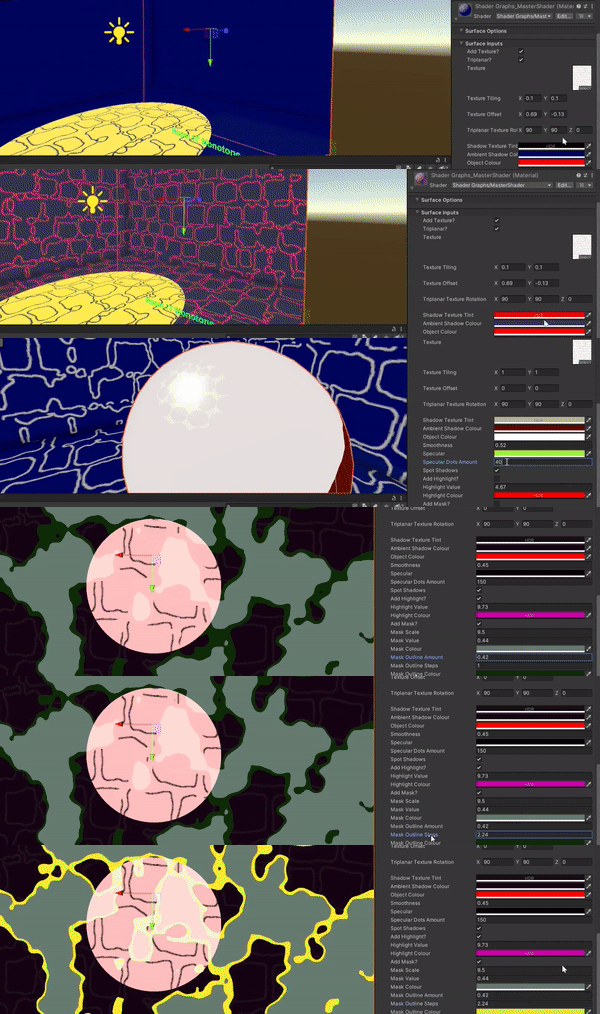
The parameters and directions are as follows:
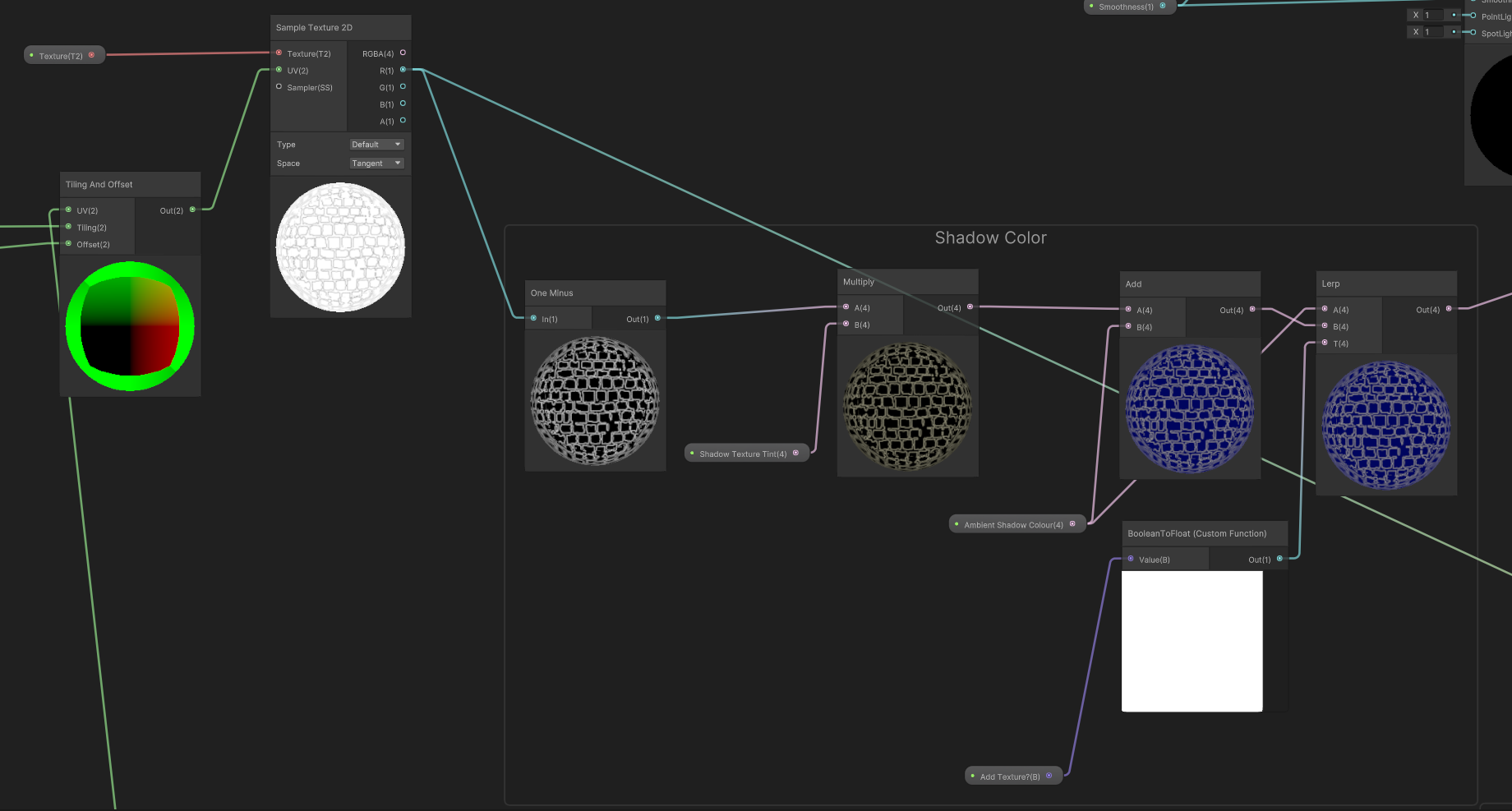
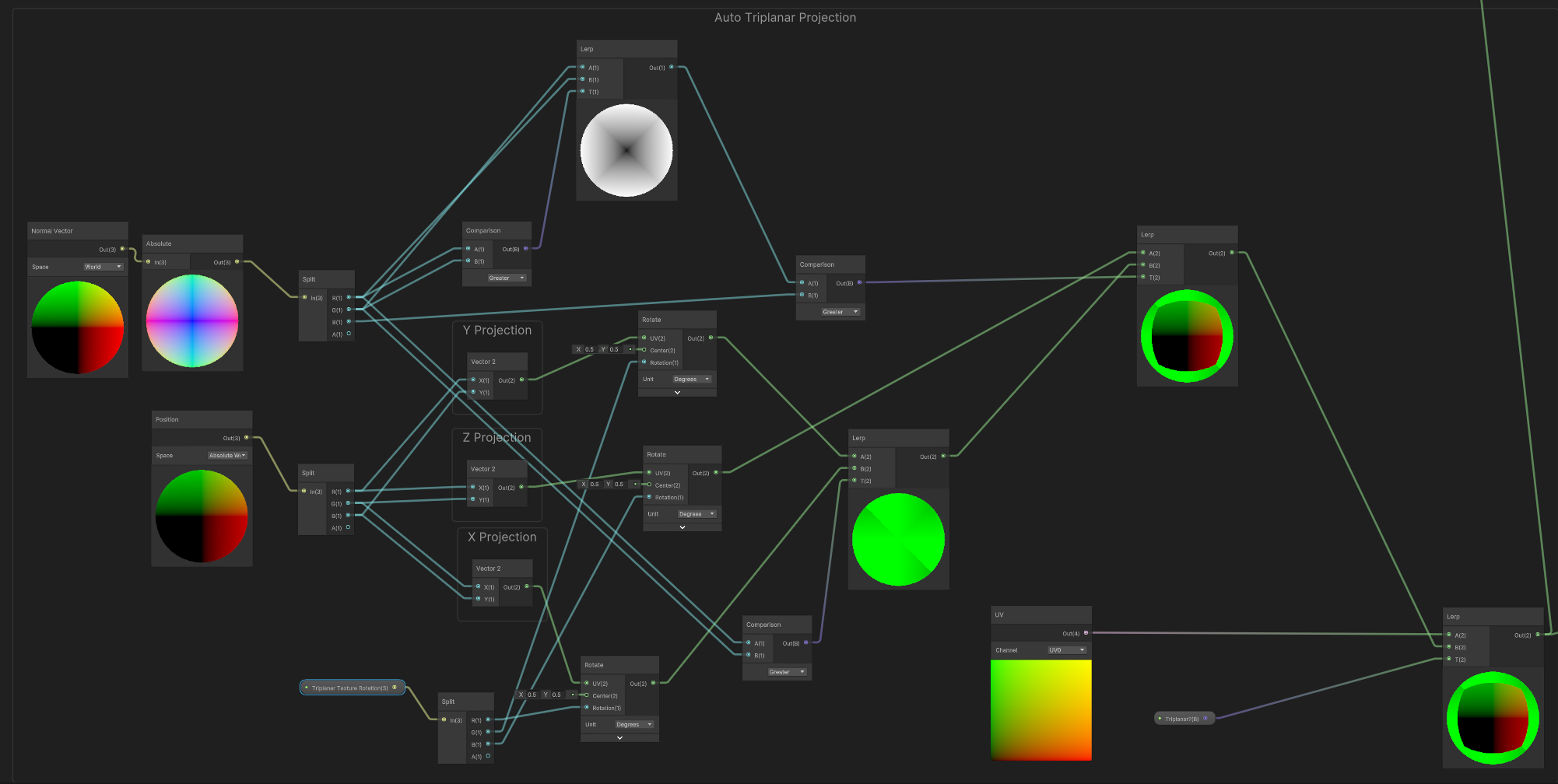
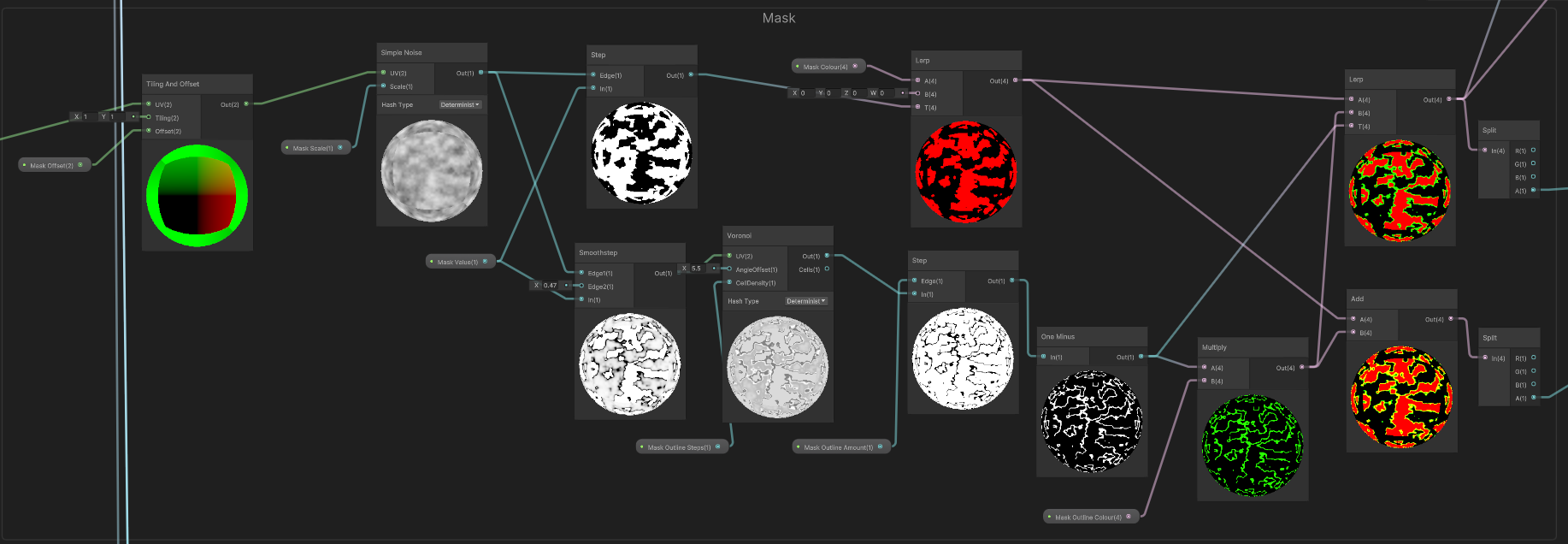
Add Texture?– Activate only if adding a texture. Deactivate if a texture is not used.Triplanar?– Activates automatic Triplanar feature. This feature will enable automatic scaling, tiling of textures and noises and projection axis settings.Texture– Textures should be added here. Textures should have black details and white negative space.Texture Tiling– Tiling of the texture in the X and Y axes.Texture Offset– Offset of the texture in the X and Y axes. This can also be used for offsetting or moving textures with time.Triplanar Texture Rotation– Rotation of the Triplanar Projector in degrees for the X, Y and Z axes. This will rotate the texture ONLY when theTriplanar?parameter is activated.Shadow Texture Tint– Tints the colour of the texture in shadow.Ambient Shadow Colour– Adjusts the ambient colour of shadows.Object Colour– Adjusts the object’s original colour. Adjusting this parameter may seem subtle as light colour is added to it.Smoothness– Adjusts the smoothness of the material. This will alter the specular size of the material.Specular– Adjusts the Specular Colour of the material.Specular Dots Amount– Adjusts the number of Half-Tone Dots in the specular portion of the material.Spot Shadows– Activate to render shadows for spot and point lights.Add Highlight?– Activate to add (fresnel) highlights.Highlight Value– Adjusts the highlight amount.Highlight Colour– Adjusts the highlight colour.Add Mask?– Activate to add a noise mask.Mask Scale– Adjusts the scale of the noise mask.Mask Value– Adjusts the noise amount of the mask.Mask Colour– Adjusts the colour of the mask.Mask Outline Amount– Adjusts the outline width of the mask.Mask Outline Steps– Adjusts the number of steps for the outline.Mask Outline Colour– Adjusts the colour of the outline.Inverted Outlines?– Makes the outlines semi-transparent and inverts the colour while in light.Mask Offset– Offset of the noise mask in the X and Y axes. This can also be used for offsetting or moving noise masks with time.

 Wei Yong's Tech Art Blog