Description
PSD2Unreal is a Python tool designed for Unreal Engine, created using PySide and Qt. Modules include psd_tools, numpy, PIL, functools and PySide. The tool’s primary function is to read layers from a Photoshop (PSD) file and convert them into Instanced Static Meshes within Unreal Engine.
The tool works by identifying the coloured regions within each layer of the PSD file. For each coloured region, it creates an actor in Unreal Engine, complete with instanced static meshes that correspond to the colour and shape of the region based off pixel coordinates. This allows for a seamless transition from 2D design in Photoshop to either environment or level design in Unreal Engine.
PSD2Unreal also has the ability to instantiate on the edges of the selected colour. This means it can create additional instances of static meshes along the boundaries of the coloured regions if you prefer. This is done by checking pixel neighbours and flagging the pixel coordinate if it finds a non-matching colour.
The edge finding algorithm is written as follows:
# Iterate through all coloured pixels
for y, x in zip(y_np, x_np):
	# Check neighboring pixels (up, down, left, right, and diagonals)
	for dx, dy in [(1, 0), (-1, 0), (0, 1), (0, -1), (1, 1), (-1, -1), (1, -1), (-1, 1)]:
		ny, nx = y + dy, x + dx
		if 0 <= ny < numpy_array.shape[0] and 0 <= nx < numpy_array.shape[1]:
			if not np.all(numpy_array[ny, nx] == colour):
				# Found an edge pixel
				edge_mask[y, x] = True
				break  # No need to check other neighbours
The tool’s parameters and it’s descriptions are listed below:
- PSD File Path: The system path for the PSD file. Pressing on the tool button will open a file dialog that allows the user to select a PSD file only.
- Layer Name: The selected PSD Layer to draw data from. The drop down menu automatically reads the PSD Layers and displays the image.
- Selected Objects: Pressing on the tool button will open a file dialog that allows the user to select .uasset files only. Only SM_ prefix filenames are allowed. The filenames are then displayed in the text box.
- Instances per Object: Number of Instances to add per Object.
- Scale: Base XYZ Scale of each Instance.
- Rotation: Base XYZ Rotation of each Instance.
- Randomise: Randomises XYZ Scale (Clamped to Half of Base Scale Above and Below) and XYZ Rotation of each instance.
- Spacing Multiplier: Multiplies space between instances.
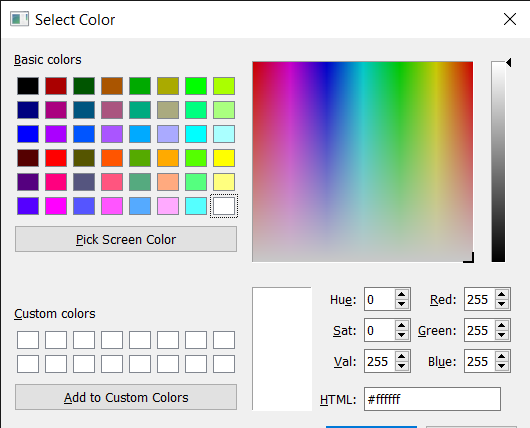
- Assign Colours: For each asset selected, a colour can be assigned to it. By selecting “Pick Colour”, a colour picker dialog window opens that allows the user to select a colour. The user may also opt to use the screen colour picker to select a colour from the image of the layer displayed. This window also allows the user to remove assets that was previously chosen.
- Edges: Tick the box to add the instances to the edges of the filled in colour instead of having them spread across the coloured sections.
The user can generate the asset by selecting the Generate button. During the asset creation, a progress bar is displayed to inform the user on the creation progress.
 Wei Yong's Tech Art Blog